
Who this article is for
This article applies to a classic (on-premises) Exchange server that uses a user name and password.
It does not apply to Microsoft 365 or to Exchange hybrid setups with modern authentication. For those, see Microsoft 365 connection stopped working.
Step 1: Check the Exchange version
By default, Automatic Email Manager connects as Exchange 2015 or later. If your server runs Exchange 2013 or earlier:
- Edit the account and go to step 3.
- Click More options.
- Set Exchange server version to Exchange 2010.
- Click Test connection.
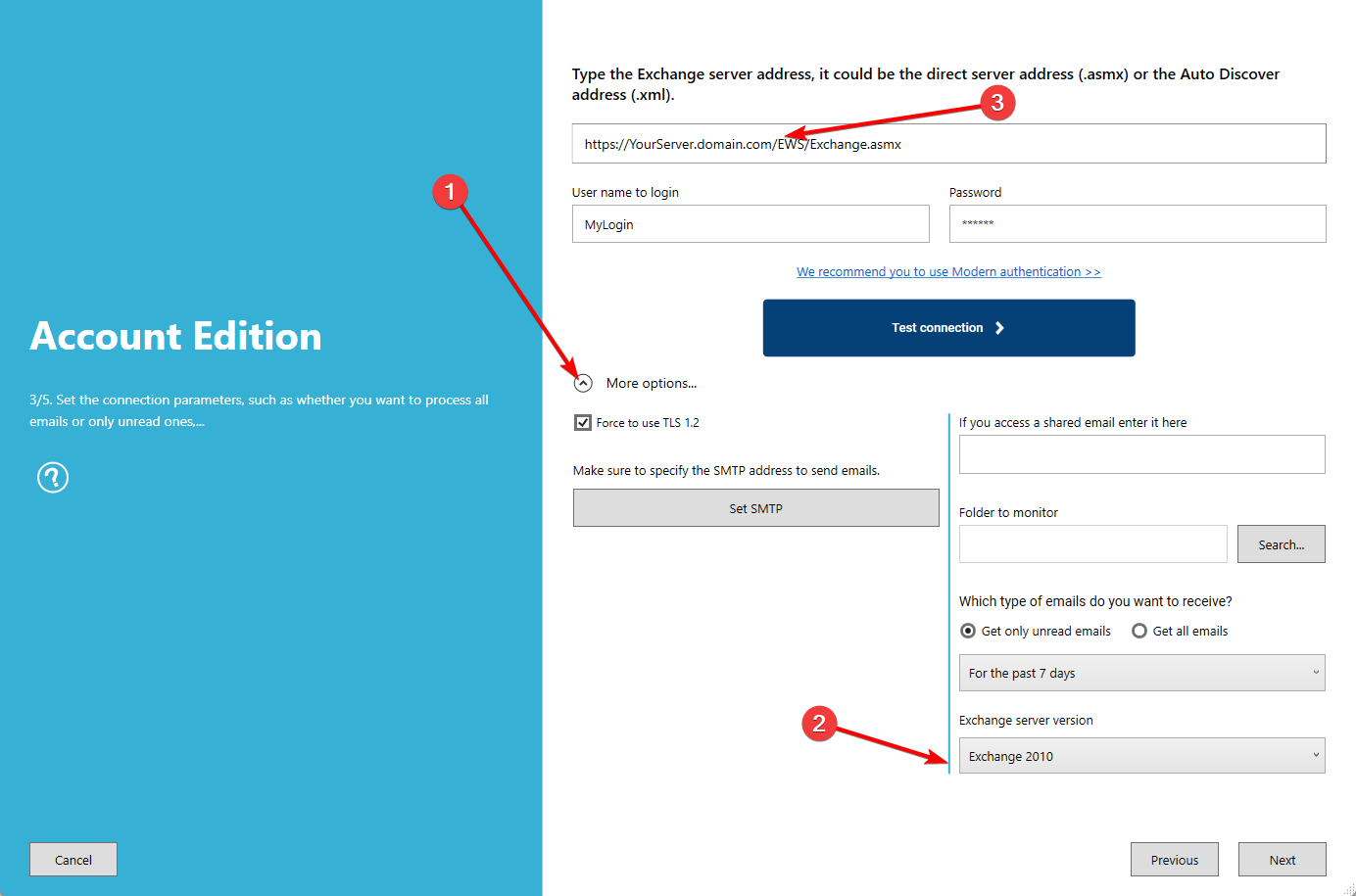
If the test still fails, go to step 2.
Step 2: Check the EWS address
The Exchange Web Services (EWS) address must look like this:
https://YourExchangeServer.YourDomain.com/EWS/Exchange.asmx
To find the right address, use one of these methods.
Method 1: Exchange Management Shell
- Open the Exchange Management Shell on your Exchange server.
- Run this command:
Get-WebServicesVirtualDirectory | Select-Object Name,Server,InternalUrl,ExternalUrl- Use the ExternalUrl shown in the result.
Method 2: Exchange Admin Center (EAC)
- Open
https://<ExchangeServerName>/ecpin your browser and sign in as an administrator. - Go to Servers > Virtual directories.
- Select the EWS virtual directory.
- In the details pane, copy the External URL.
Paste the address in your account settings, then click Test connection.
Tip: If Automatic Email Manager runs inside your network, the Internal URL may work better than the External URL. Try both.
Step 3: Contact support
If the problem persists, contact us and include:
- Your Exchange version
- The EWS address you used
- The error message shown after Test connection