
Symptoms
When a scenario sends an email (Send an email, Reply to email, or Forward email), Automatic Email Manager asks you to sign in with Microsoft each time a new email is processed.
Cause
Microsoft 365 only allows sending from the address that is signed in. The sign-in prompt appears again when:
- The SMTP settings of the account don't match the signed-in address, or
- The From field in the action uses a different address, such as an alias.
This is a Microsoft restriction, not a limitation of Automatic Email Manager.
Solution
Step 1: Check the SMTP settings of the account
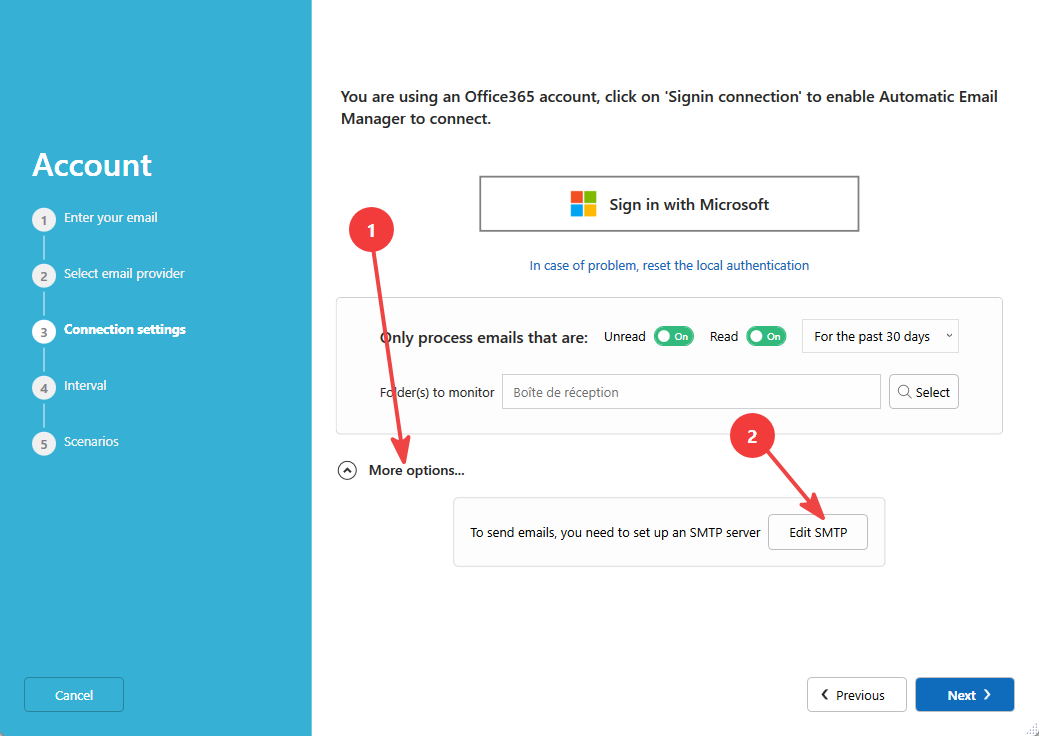
- Edit the account and go to step 3.
- Click More options, then Set SMTP.
Step 2: Check the login address
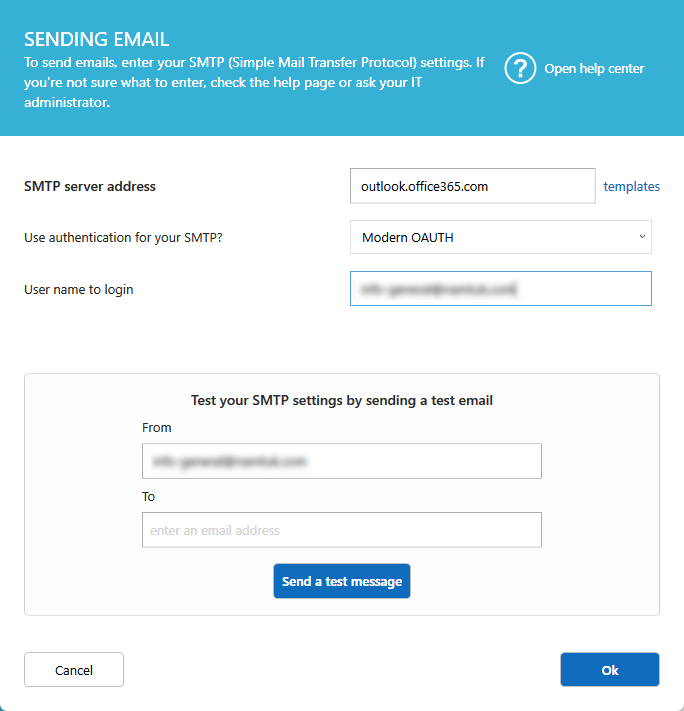
In the Login field, enter:
- Your own address, if you use a regular mailbox (default value)
- The address you use to sign in, if you access a shared mailbox
Click OK to save and close.
Step 3: Check the From field in your action
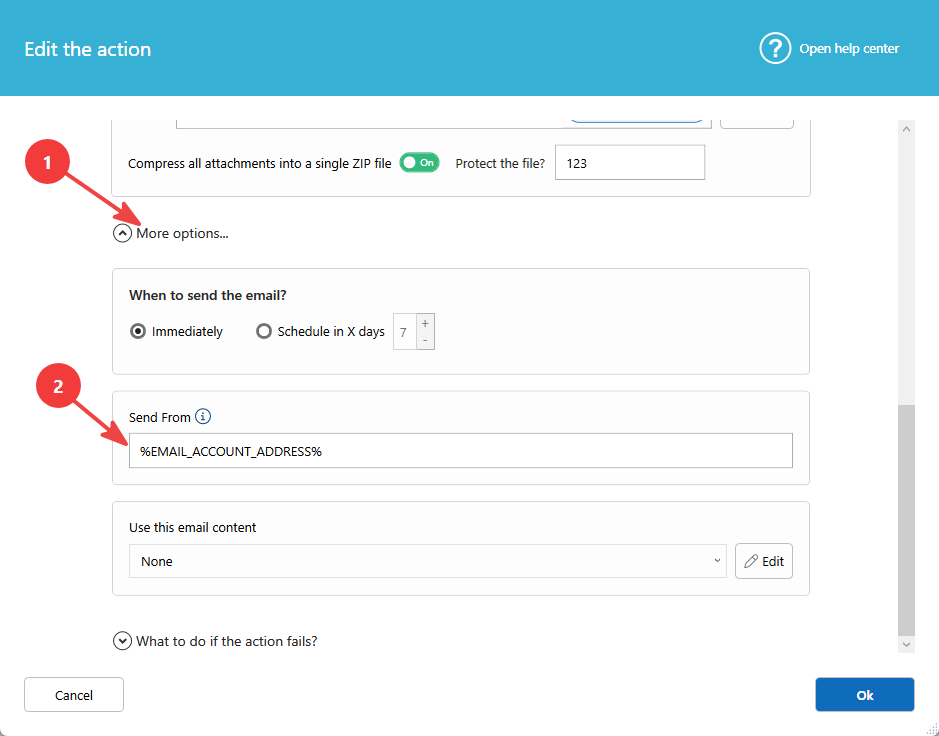
- Open the list of scenarios and edit the action that sends, replies, or forwards.
- In the From (email) field, use one of these:
- The default value
%EMAIL_ACCOUNT_ADDRESS%(recommended) - The exact address of the account (shared or login address)
- The default value
Important: Do not use an alias or a different address. Microsoft 365 does not allow it, and it triggers the sign-in prompt.
Still asked to sign in?
Contact us and tell us which action you use (send, reply, or forward) and whether you access a shared mailbox.