
Edit the subject of an email on the server once it's been processed. A common use is to add a tag like [DONE] at the start, so you can see at a glance which emails have been handled.
Available for Office 365 and Exchange accounts only.
Add the action
- Create or edit a scenario.
- Click Add action, then select Manage email on server, then Change email subject.
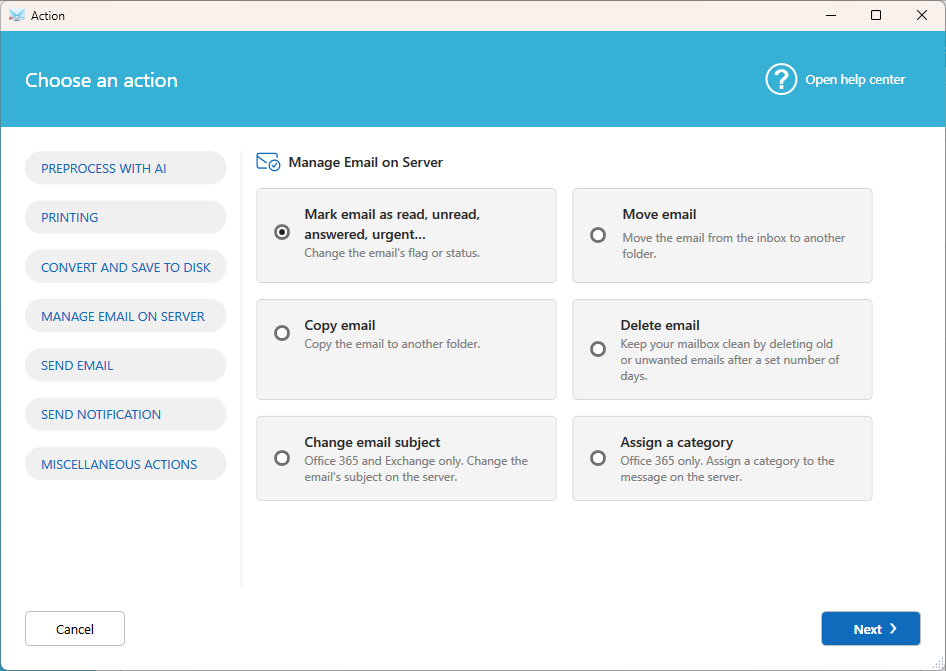
- Choose how to change the subject:
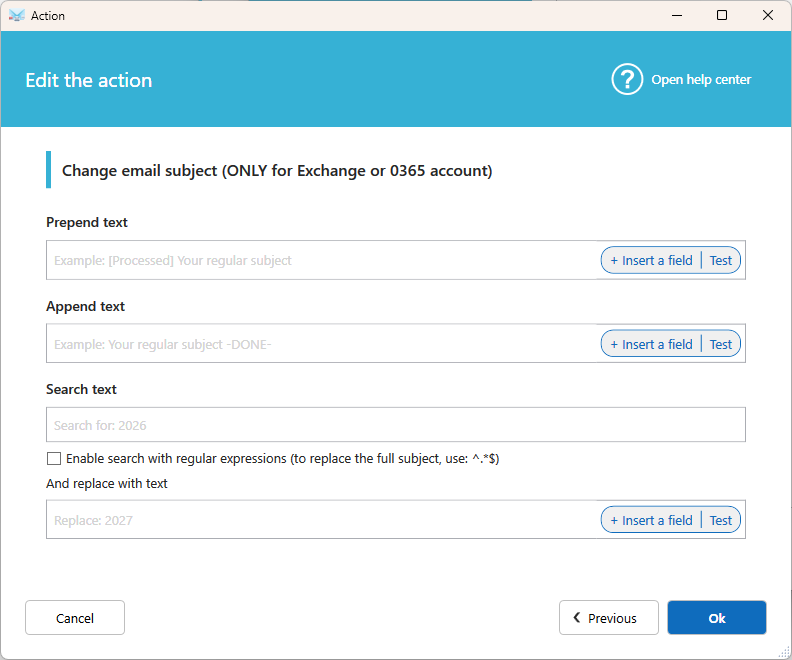
- Prepend text: Adds text before the current subject.
- Append text: Adds text after the current subject.
- Search text / And replace with text: Finds a text in the subject and replaces it with another. You can use a simple text or a RegEx (.NET).
Examples
| Goal | Setting | Result |
|---|---|---|
| Mark as processed | Prepend text: [DONE] | [DONE] Order 1042 |
| Add a reference | Append text: - Processed | Order 1042 - Processed |
| Replace a word | Search Quote, replace with Invoice | Invoice 1042 |
| Replace the whole subject | Search ^.*$, replace with New subject | New subject |
Tip: Use Fields in the replacement text to insert email data, for example the sender name.
Good to know
- The subject is changed on the server. It is also changed in all your email apps connected to this mailbox.
- Use this action together with Mark email as read, unread, answered, urgent or Assign a category to make processed emails easy to spot.
Related articles
- Action: Assign a category
- Action: Mark email as read, unread, answered, urgent