
Keep a record of your incoming emails in a CSV file. Each time an email is processed, a new row is added with the email data you choose: sender, subject, date, and more.
A CSV file is plain text. You can open it in Excel, Access, or any text editor, and import it into most databases.
Tip: Want to know more about the format? See CSV on Wikipedia.
Add the action
- Create or edit a scenario.
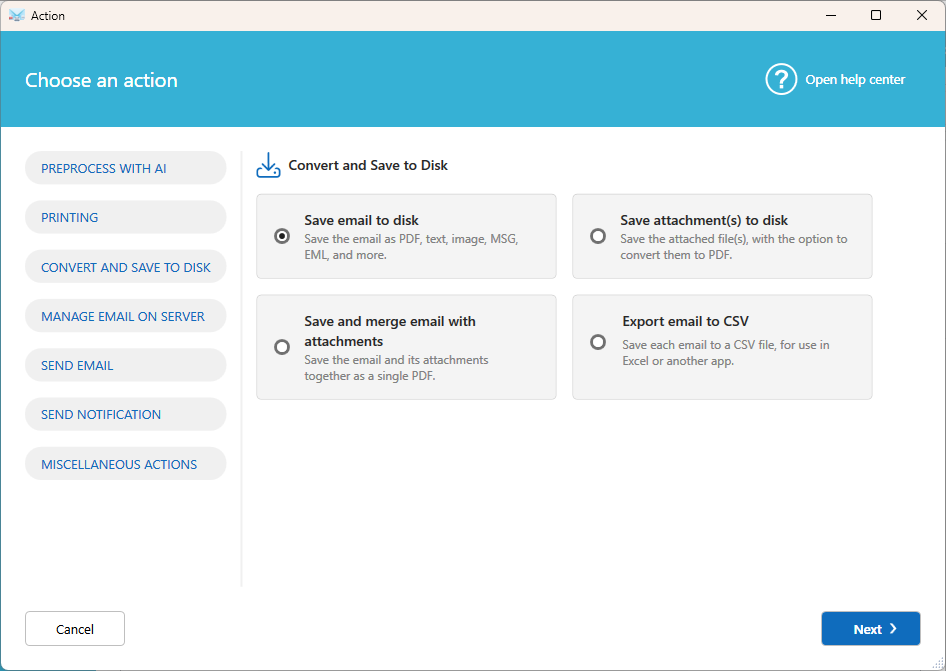
- Click Add action, then select Convert and save to disk, then Export email to CSV.
- Configure the export:
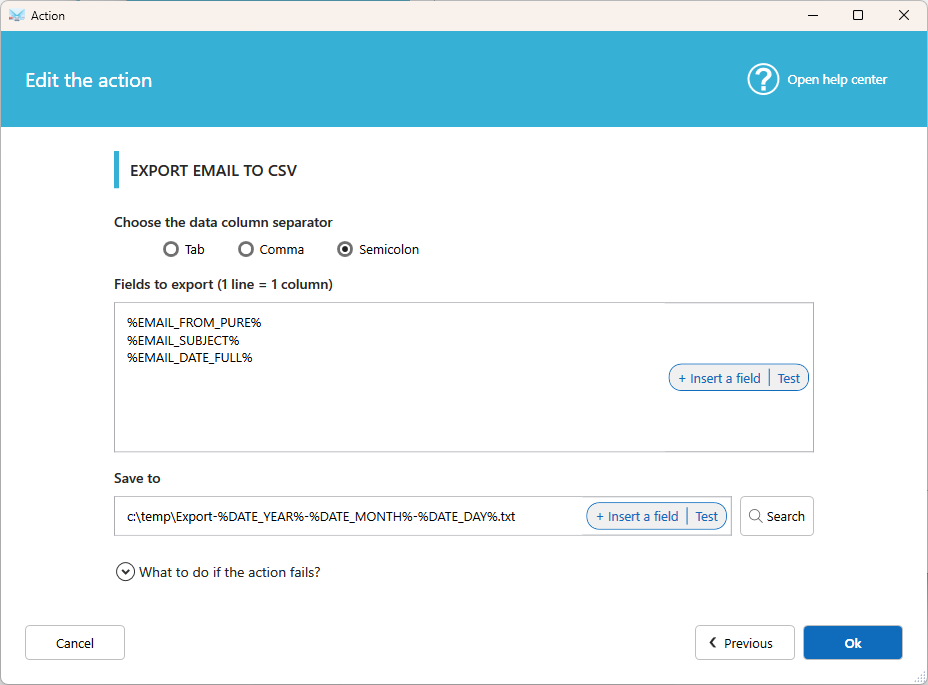
- Choose the data column separator: Comma by default. You can also select Tabulation or Semicolon.
- Choose the fields to export: Select the email data to include. Each line is one column in the file.
- Save to: Where the file is saved. Include fields in the path or file name to create a new file per day, month, or account.
- Click Ok to save the action.
Examples
- One file per month: use a date field in the file name, such as
emails-2026-10.csv. - One file per account: use the account name field in the file name.
Tips
- If you open the file in Excel and all the data appears in a single column, change the separator. In many European countries, Excel expects a semicolon.
- Use a condition in your scenario to export only the emails you need, such as orders or invoices.
Related articles
- Use fields functions to extract part of your data