
Get a message in your Slack channel each time an important email arrives. You can include the subject, the sender, the email body, and even post the attached files.

Note: The Automatic Email Manager Notif app isn't listed in the Slack App Directory yet. Use the Add to Slack button in Step 1 to install it.
Setup takes two steps.
Instructions to connect to Slack
TABLE OF CONTENTS
Step 1: Add the app to Slack
Use one of these two methods.
- Method A: Use the install button
Click Add to Slack and follow the instructions:
- Method B: Add the app from your channel
- In Slack, open the channel and click its name at the top to open the channel details.
- In Slack, open the channel and click its name at the top to open the channel details.

- Click Integrations, then Add an App.
- Search for Automatic Email Manager Notif and click Add.

- After the installation, copy the Bot token provided by Slack. You'll need it in Step 2.
Step 2: Add the action in Automatic Email Manager
- In the left menu, click Scenarios. Edit an existing scenario or click New scenario.
- Click Add action, then select Send notification, then Send a message to a Slack channel.
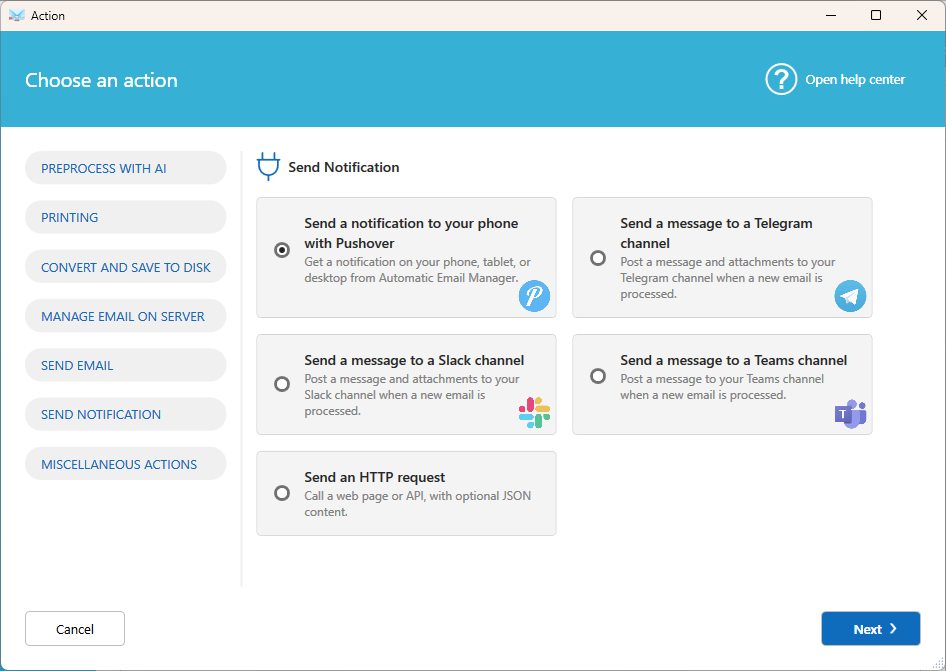
- Fill in the settings:
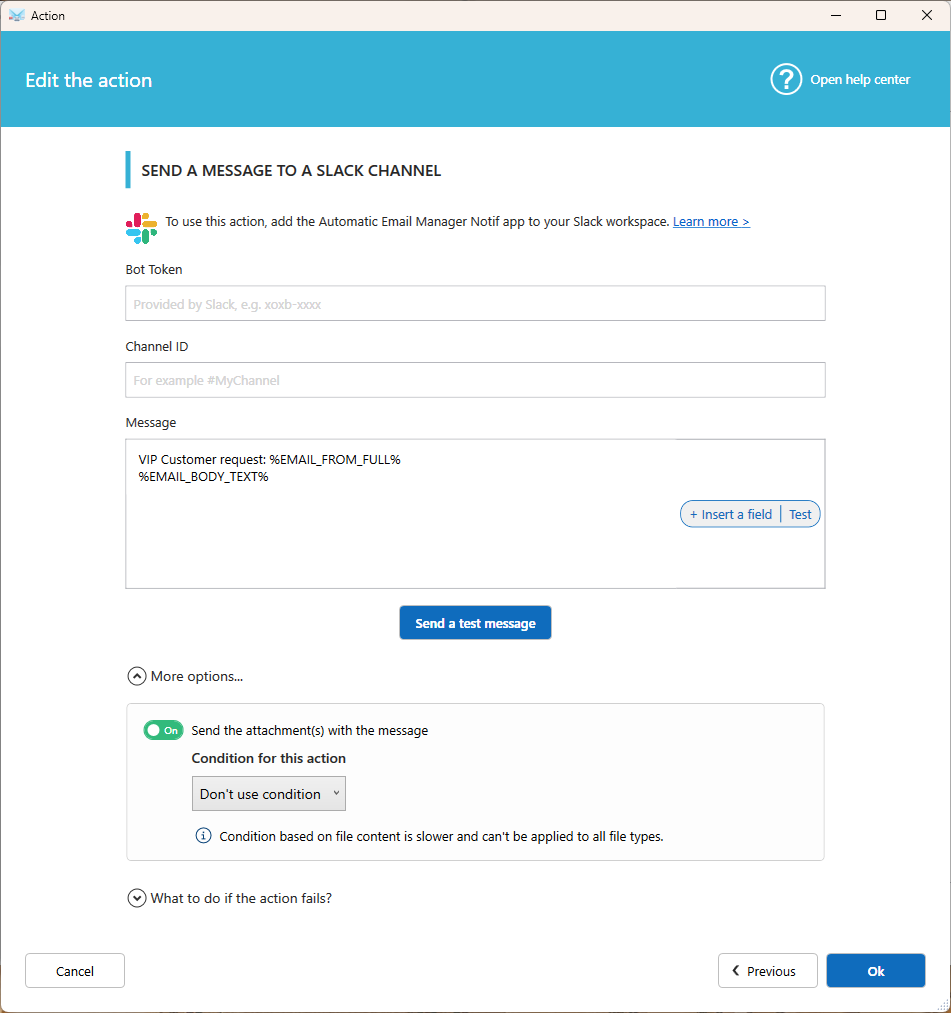
- Bot token: The token provided by Slack when you added the app.
- Channel Id: The channel that receives the messages, in the format
#MyChannel. - Message: The text to post. Click Fields to insert the subject, the sender, the email body, or the list of attachments.
- Send the attachment(s) with the message: Turn this on to post the attached files in the channel.
- Click Ok to save the action.
Tip: To avoid posting too many files, add a condition to send only specific attachments, for example only .pdf files.
Related articles
- Send a message to a Teams channel
- Send a message to a Telegram channel